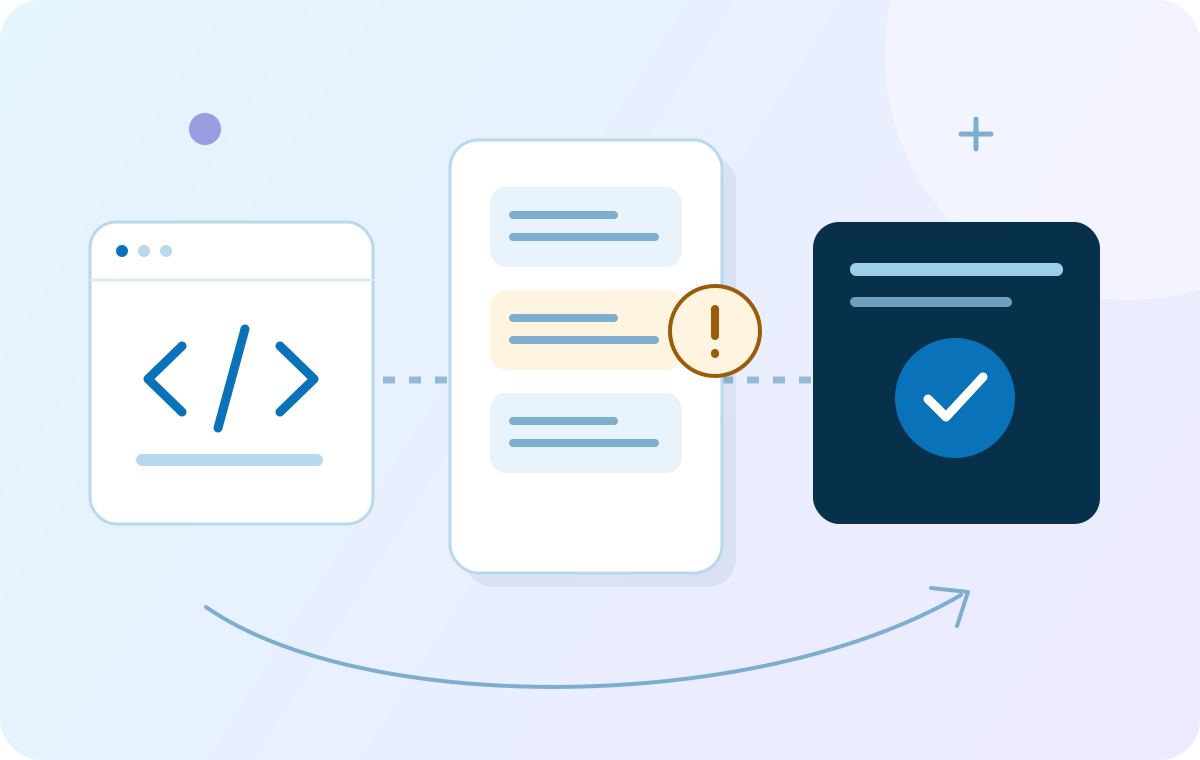
The short version
- Use a fresh logged-out session and compare the actual public HTML.
- Isolate one cache, optimization, or policy layer at a time on staging.
- Keep security protections intact and document the rollback before publishing.
1. Capture the problem before touching settings
Write down the public URL, time, browser, WordPress and theme versions, recent changes, and the exact symptom. 'The launcher is absent' is different from 'the panel opens but its controls do nothing.' Take a screenshot and save the first relevant console error. If you cannot reproduce the issue in a fresh logged-out session, compare account state, cache variation, consent choices, and browser extensions before changing the installation.
Use staging or a recoverable copy for conflict testing. Save the current snippet, the setting where it was installed, and a rollback path. Avoid deactivating a live store's payment, security, or cache plugins during customer traffic just to see what happens. If the problem blocks a critical journey, consider removing the widget through the documented installation setting while you investigate.
Check the normal installation guide first if the widget has never worked. Obtain the exact snippet from the dashboard for the intended site and hostname. This guide assumes a manual script installation; it does not imply an official WordPress.org ComplyWCAG plugin or compatibility with every combination of theme and plugin.
2. Locate the first failing layer
Open the public page's source and search for the loader URL and site identifier from your dashboard snippet. Then inspect the live DOM and Network panel. Source shows the server response; the DOM can also contain a script injected later by a tag manager. If a consent rule intentionally defers insertion, test both declined and allowed states and document that behavior rather than declaring the script missing.
If the script exists, reload with the Network panel open. Find the loader and its follow-on configuration/runtime requests. Check the status, final URL, blocked reason, and request initiator. A successful loader response does not prove the configuration was accepted or that a panel rendered. Follow the chain in order so you do not spend time adjusting CSS for a script that never loaded.
More columns to the right. Swipe horizontally, or focus the table and use the arrow keys.
| Observed symptom | Check next | Avoid assuming |
|---|---|---|
| No snippet in public source or DOM | Publish state, injection location, consent rule | That a dashboard save changed the live theme |
| Snippet present; request blocked | Console policy message, request URL, browser extension | That every failure needs a wider CSP |
| Loader succeeds; configuration rejected | Site ID, exact approved origin, response details | That staging and production hosts are interchangeable |
| Launcher visible; panel or setting fails | Runtime error, duplicate install, layout interaction | That a visible icon proves the install is healthy |
3. Check caches and duplicate installations
A logged-in administrator may receive different HTML from a logged-out visitor. Compare the actual public response after saving the script setting. Inventory the page-cache plugin, host cache, CDN, and browser cache; not every WordPress installation has all four. Purge only the relevant layers using your provider's documented controls, then reload the same URL in a fresh session. Disabling the browser cache does not purge an upstream CDN.
When old HTML persists, check whether you edited the active theme or a draft, and whether the script setting applies to the affected template. A marketing landing-page builder may render outside the usual footer. Keep a record of which pages contain the script rather than repeatedly pasting it into additional locations.
Search the theme's script settings, code-injection plugin, page builder, and tag manager for the same loader. Use Network initiators and DOM inspection to identify multiple sources. Remove duplicates at their source on staging, leaving one intentional installation. Counting script tags alone is not a complete diagnosis because a loader can be inserted dynamically or requested more than once through navigation.
4. Isolate CSP and script optimization safely
For a CSP failure, read the browser's exact policy message and the effective response headers. Identify the directive and origin being blocked, including any redirect destination. Ask the site security owner to compare those with the current installation reference. Multiple policies can apply together; editing a meta tag will not override a stricter response header. Do not add a blanket wildcard, unsafe-inline, or unsafe-eval to make the warning disappear.
If the loader uses a nonce, the value must come from the host page's own per-response CSP integration. A placeholder copied as a literal string is not a valid deployment solution. Keep any real nonce or token out of support screenshots. A network CORS error and a CSP block are different failure classes, so changing one policy will not necessarily resolve the other.
For an optimization conflict, reproduce the issue on staging with the original snippet and change one transformation at a time: script combination, deferred execution, delayed-until-interaction loading, or URL rewriting. Compare requests and the earliest relevant console error before and after each change. If a narrow exclusion fixes the issue, document it with the optimizer version; do not permanently turn off site-wide performance protections without measuring the trade-off.
5. Retest after theme and plugin updates
If the issue began after an update, compare the last working revision with the changed template and script settings. Direct edits to a parent theme can disappear when it is replaced. A supported injection setting or maintained child-theme integration is usually easier to track, but it still needs a post-update check. Avoid editing WordPress core or a vendor's minified widget files as a repair.
On staging, use the WordPress conflict-testing workflow to isolate the changed component. Keep the checkout, navigation, and forms in the regression sample. After resolving delivery, open the panel with a keyboard, apply a preference, reset it, and repeat the host site's important tasks at mobile width. A clean console is useful evidence, not proof of an accessible shopping experience.
For support, send a redacted reproduction: affected public URL, browser, versions, snippet location, response statuses, first relevant error, and the smallest setting change that reproduces the failure. Remove cookies, authorization headers, account identifiers, and form contents before sharing network exports. Record the fix and retest trigger so the next update is a controlled check rather than another guess.
Sources and editorial notes
Written and reviewed by the ComplyWCAG team. This is practical implementation guidance, not a conformance assessment or legal advice. Platform documentation can change.
Last reviewed . Illustrations are original explanatory diagrams, not platform screenshots or test results.